Shipping Portal
The shipping portal allows for creation of any type of shipping labels including retail orders, account and free form labels.
Retail orders
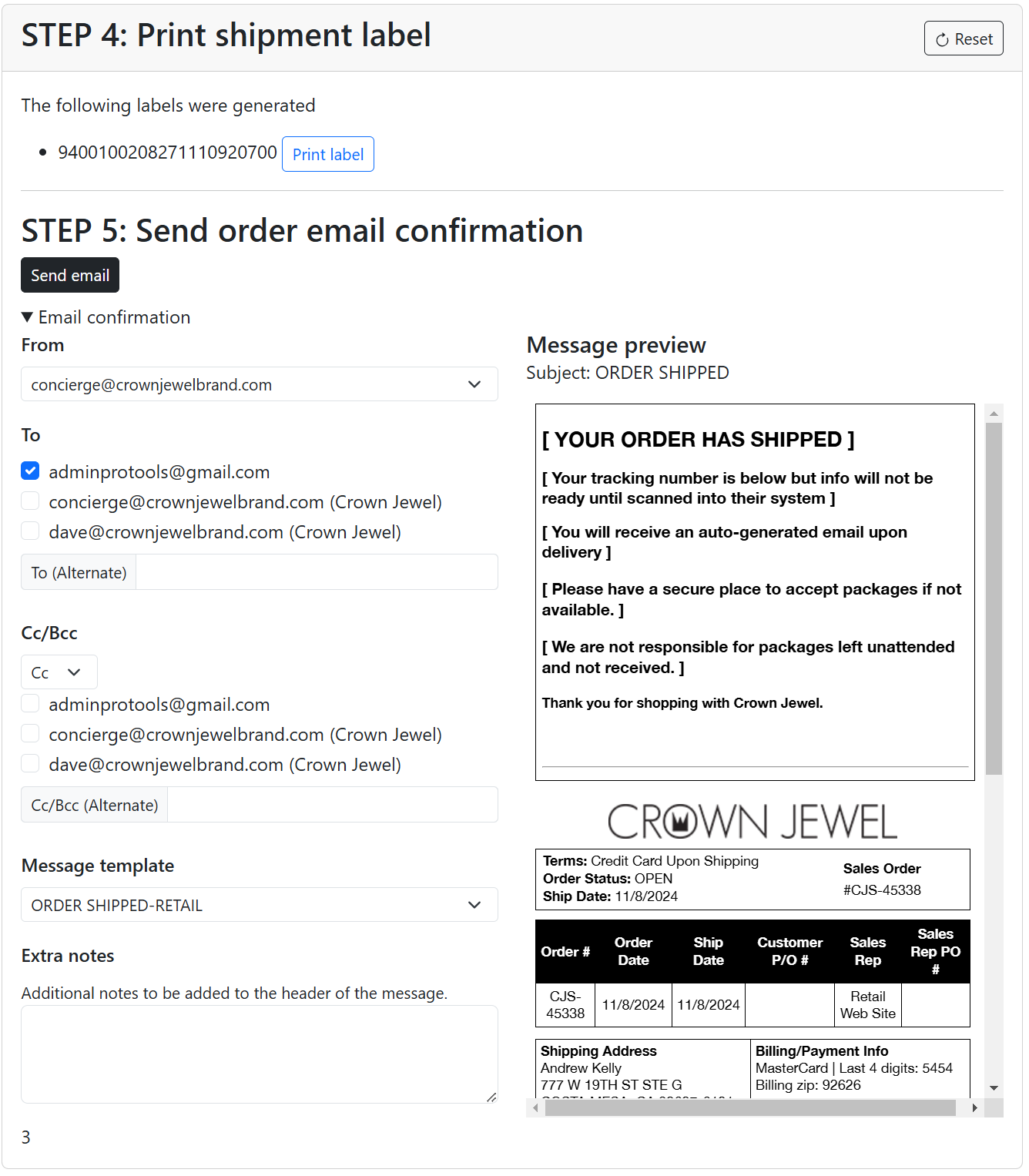
Click the order number in the “Quick ship orders” left navigation menu. This will populate the “Shipment address”.
Select the box type, enter the box weight and unit of measurement. If this is a multiple box shipment, click the “Add box” button to add another box. After completing box setup click the “Get rates” button to rate the order.
Select the desired shipping method and rate for the order and click the “Buy label” button to create the shipping label.
Notes - If this is a retail website order the shipping method selected by the customer at checkout will be displayed as a notice above the shipping rates.
Print the shipping label using the “Print label” button.
Send the shipping label to the customer by email by confirming the email preview and clicking the “Send email” button.
Account and blank (free form) labels
From the Shipping portal main screen do either of the following to populate the shipping label address.
Search for an account address using the Account lookup search box Or Click the “New label” button to enter the shipping label address manually.
Select the box type, for envelopes or other predefined USPS packaging select from the “USPS - ” options at the end of the box type select menu.
Enter the box/letter weight and unit of measurement and click the “Get rates” button to rate the order.
Select the desired shipping method and rate for the order and click the “Buy label” button to create the shipping label.
Print the shipping label using the “Print label” button.
Tutorial (Retail orders)
STEP 1: Click the order number in the “Quick ship orders” left navigation menu. This will populate the “Shipment address”.
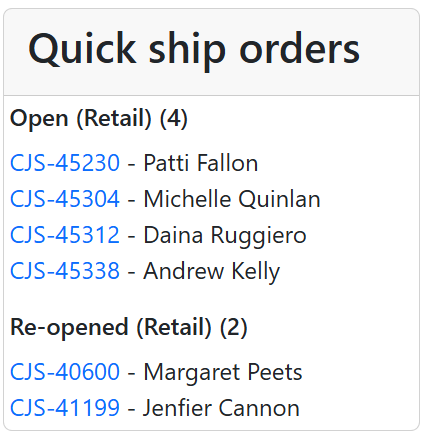
STEP 2: Select the box type, enter the box weight and unit of measurement. If this is a multiple box shipment, click the “Add box” button to add another box. After completing box setup click the “Get rates” button to rate the order.
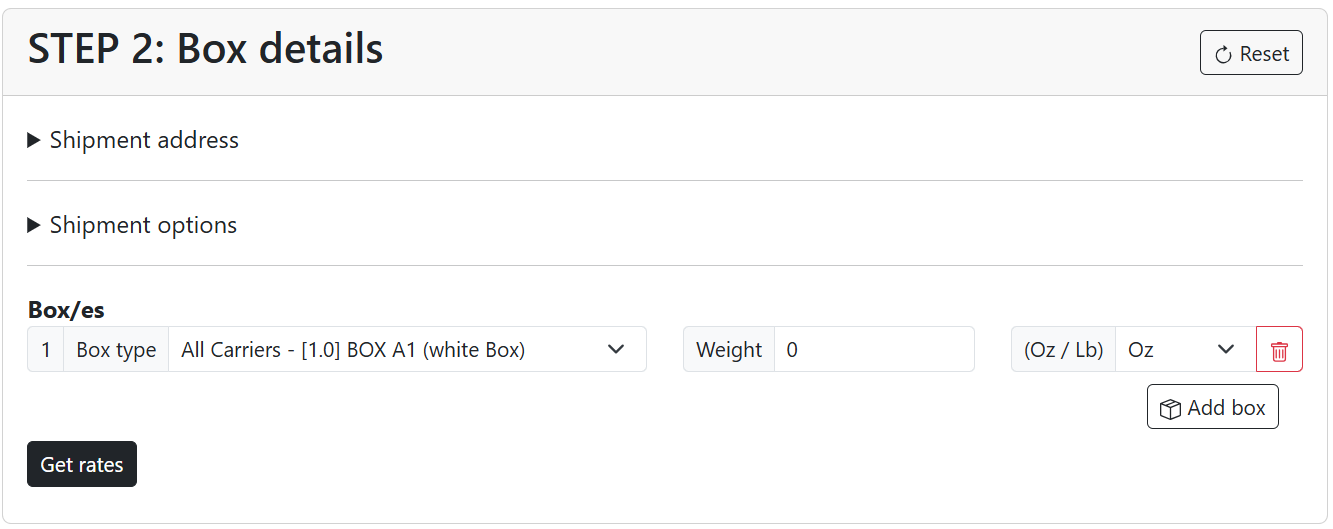
STEP 3: Select the desired shipping method and rate for the order and click the “Buy label” button to create the shipping label.
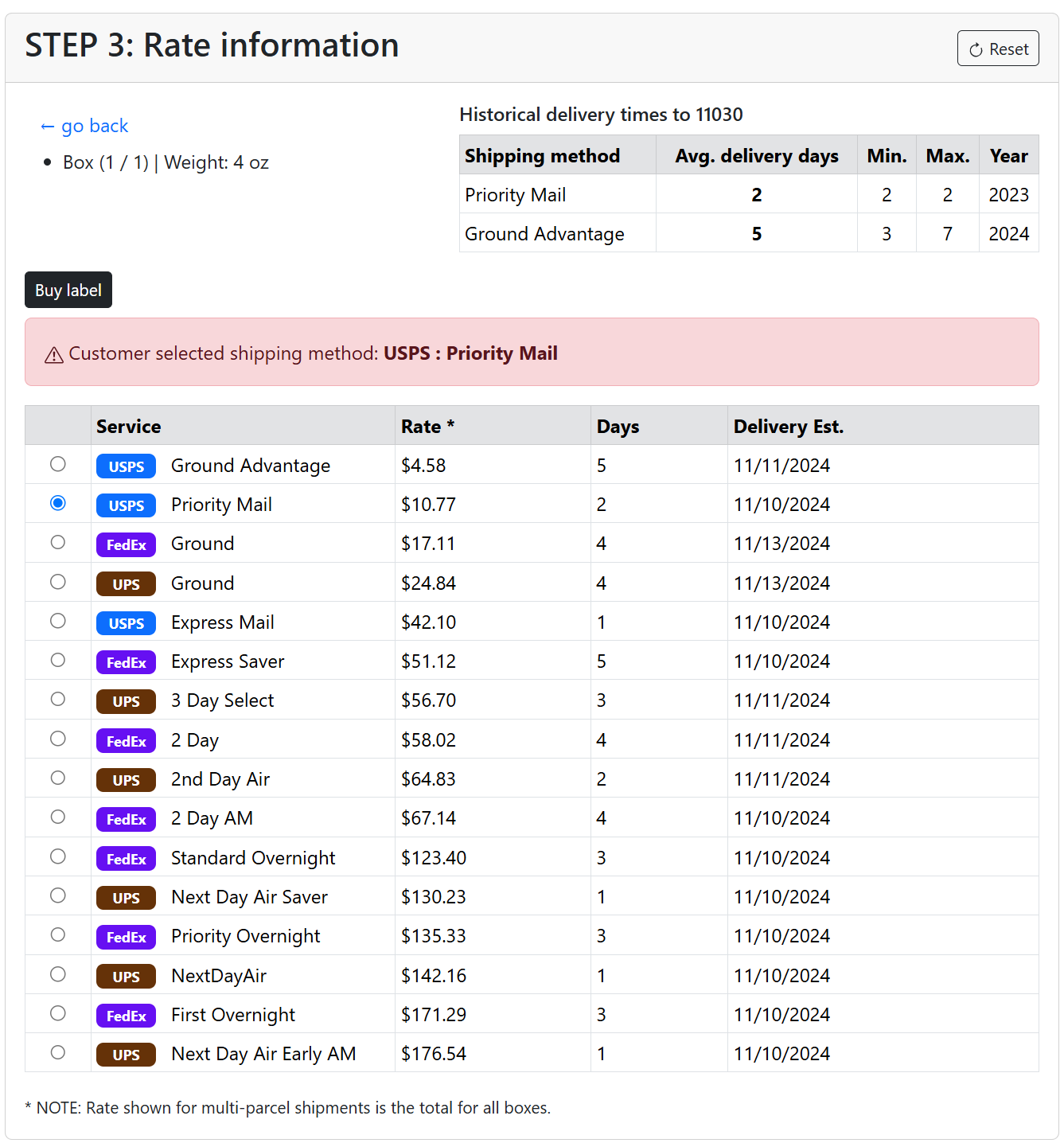
STEP 4: Print the shipping label using the “Print label” button.
STEP 5: Send the shipping label to the customer by email by confirming the email preview and clicking the “Send email” button.